

A local LLM is a language model that runs on hardware you own instead of on a company’s servers. Nothing you type leaves the machine, there is no usage bill, and it keeps working when your connection does not. The trade is that you supply the memory, the electricity and the patience. This guide covers what the hardware actually has to be, how to get a model running, what quantisation means in plain terms, and where a model on your desk falls short of a hosted one.
Updated September 2026.
What you are actually running
A model is a large file of numbers called weights. A runtime loads those weights into memory, turns your text into tokens and generates a reply one token at a time. Most desktop tools sit on top of llama.cpp, the C and C++ project whose stated main goal is to enable inference with minimal setup and strong performance across a wide range of hardware. Ollama wraps that idea in a command line tool and a background service; LM Studio wraps it in a desktop application with a model browser.
What you do not get is the product you use in a browser. Hosted assistants bundle web search, file handling and a far larger model than a desktop can hold. Running locally gives you the model. Everything around it is yours to assemble.
The hardware a local LLM needs
Start with published minimums rather than folklore. LM Studio’s system requirements list Apple Silicon (M1 or later) on macOS 14.0 or newer, an x64 or ARM processor with AVX2 support on Windows, and Ubuntu 20.04 or newer on Linux. It recommends at least 16 GB of RAM, notes that 8 GB Macs can manage smaller models, and suggests a minimum of 4 GB of dedicated VRAM on Windows machines with a discrete graphics card.
After that, the number that decides everything is the size of the model file, because it has to fit somewhere. The Gemma 3 downloads listed in Ollama’s model library give a clear ladder: 292 MB for the 270M model, 815 MB for 1B, 3.3 GB for 4B, 8.1 GB for 12B and 17 GB for 27B. Leave headroom on top of that, because the context window also consumes memory. Ollama’s own documentation notes that required RAM scales with the number of parallel requests multiplied by the context length.
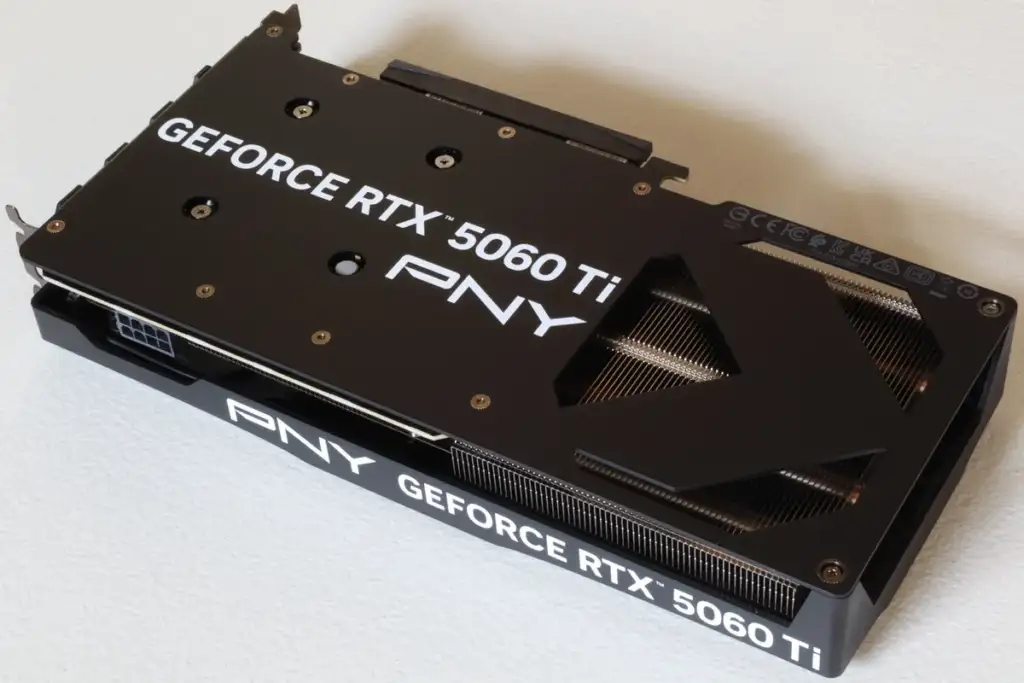
For acceleration, Ollama’s hardware page lists NVIDIA GPUs with compute capability 5.0 or higher and driver 550 or newer, AMD Radeon cards through ROCm, Apple GPUs through Metal, and Vulkan on Windows and Linux. If the model does not fit in VRAM, llama.cpp supports hybrid inference that uses the CPU and GPU together to partially accelerate models larger than the total VRAM available. That works, but generation slows down, and how much it slows depends on your specific machine.
5 simple steps to run a local LLM
- Check your memory first. Note your RAM and, if you have a discrete graphics card, its VRAM. That single figure sets the largest model you can run comfortably.
- Pick a runtime. LM Studio if you want a window and a model browser, Ollama if you are happy at a command line and want a local API, llama.cpp directly if you want to control every setting.
- Start smaller than you think. A 3B or 4B model that fits entirely in memory will feel far better than a 27B model that does not. You can always move up once you know the machine copes.
- Download a quantised build. These are the default in Ollama and LM Studio for good reason: they cut the file size sharply, which is the whole game on consumer hardware.
- Test it on your real work, not a demo prompt. Paste in the kind of document or question you actually deal with, and judge the answers and the speed together.
Quantisation explained without the maths
Quantisation stores each weight with fewer bits. Hugging Face’s documentation describes it as moving from a high precision representation, usually 32 bit floating point, to a lower precision data type such as an 8 bit integer, which reduces memory use and lets some arithmetic run faster. Nothing is added to the model. Detail is thrown away in a controlled way.
The numbers are published. Hugging Face’s GGUF reference gives the cost per weight for each type: Q8_0 uses 8 bits, Q4_K works out at 4.5 bits per weight, and Q2_K at 2.625. llama.cpp advertises integer quantisation from 1.5 bits up to 8 bits. Multiply and the effect is obvious: seven billion weights at 16 bits is roughly 14 GB, while the same weights at 4.5 bits is closer to 4 GB. That is the difference between a model that loads on a laptop and one that does not.
Quality does move. Meta’s Llama 3.2 model card shows the trade directly: the quantised 1B build is 1,083 MB against 2,358 MB for the BF16 version, but the quantised variants ship with an 8,000 token context instead of 128,000. Vendors are working on the gap. Ollama’s Gemma 3 page says the quantisation aware trained variants “preserve similar quality as half precision models while maintaining a lower memory footprint”, at roughly a third of the memory. As a rule of thumb, 4 bit builds are the usual sweet spot and anything below 3 bits degrades noticeably.
The honest limits of a local LLM
- Capability. The models you can fit at home are much smaller than the frontier models behind hosted assistants. On long reasoning, niche knowledge and code across a large project, the difference shows.
- Speed. Once a model spills out of VRAM into system RAM, generation slows. Any tokens per second figure you read applies to someone else’s hardware, not yours.
- Context. Long context windows cost memory, so the practical window is often far below the maximum printed on a model card.
- Everything around the model. Web access, file parsing, image input and tool use are features of the application, not the weights, and you assemble them yourself.
- Maintenance. New model versions, runtime updates and driver changes are now your job.
When running locally is the right call
Choose local when the data must not leave the building, when you need the same answer offline, when you are doing high volume repetitive work where per-token pricing adds up, or when you simply want to learn how these systems behave. Choose hosted when you need the strongest possible reasoning or a model that browses and handles files for you. Many people end up with both, and route each task to whichever is appropriate. If you are wiring a model into your editor, our guide to the AI coding assistant covers that side, and prompt engineering matters more with a smaller model, not less, because it has less slack to recover from a vague request. Whatever you run, check the answer before you act on it.
Common questions
What hardware do I need to run a local LLM? LM Studio recommends at least 16 GB of RAM, Apple Silicon on macOS 14.0 or newer, or an AVX2 capable processor on Windows with at least 4 GB of dedicated VRAM if you have a discrete graphics card. The model file also has to fit, with room left for the context window.
Can I run a model without a graphics card? Yes. llama.cpp is a plain C and C++ implementation that runs on the CPU, and it can also split work between CPU and GPU for models larger than your VRAM. Expect slower generation than a GPU that holds the whole model.
What does quantisation do to quality? It stores weights with fewer bits, so the file shrinks and some accuracy is lost. Four bit builds are the common compromise. Vendors now ship quantisation aware trained versions that aim to keep quality closer to the half precision original.
Is a local model private? The inference itself happens on your machine, so prompts do not go to a provider. Downloads, update checks and any extensions or plugins you add can still make network requests, so check what the application does.
Which is better, Ollama or LM Studio? They suit different habits. LM Studio is a desktop application with a model browser; Ollama is a command line tool and local API that is easier to script. Both build on llama.cpp.
Sources and further reading
Where the figures and rules above come from, so you can check them:
- System requirements for macOS, Windows and Linux: LM Studio documentation
- Supported GPUs, drivers and acceleration backends: Ollama documentation
- Memory scaling with context length and parallel requests: Ollama FAQ
- Gemma 3 download sizes and quantisation aware trained builds: Ollama model library
- Project goals, quantisation range and hybrid CPU and GPU inference: llama.cpp
- GGUF quantisation types and bits per weight: Hugging Face Hub documentation
- What quantisation is and why it saves memory: Hugging Face Optimum documentation
- Quantised build sizes and context length: Meta Llama 3.2 model card
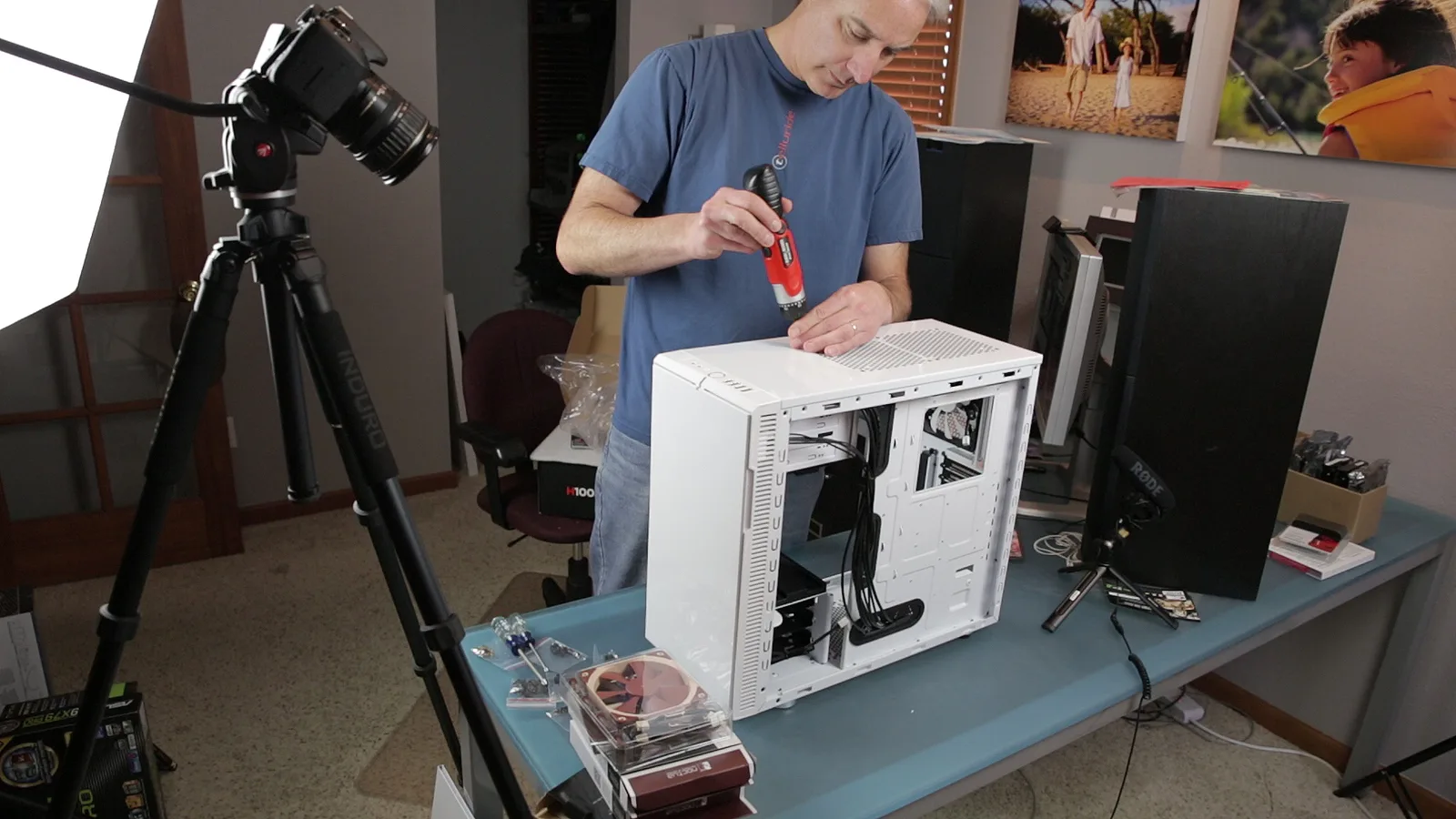
Photo credits: Assemble a Desktop PC – Jan. 2013 by Dave Dugdale from Superior, USA, CC BY-SA 2.0, via Wikimedia Commons. Nvidia GeForce RTX 5060 Ti 16GB, PNY Overclocked Dual Fan, rear by FreeMediaKid!, CC BY-SA 4.0, via Wikimedia Commons.
Smaller models are what make this practical on ordinary hardware. See our guide to the small language model.
To let a local model answer from your own documents, you will meet the vector database.

Join the discussion