

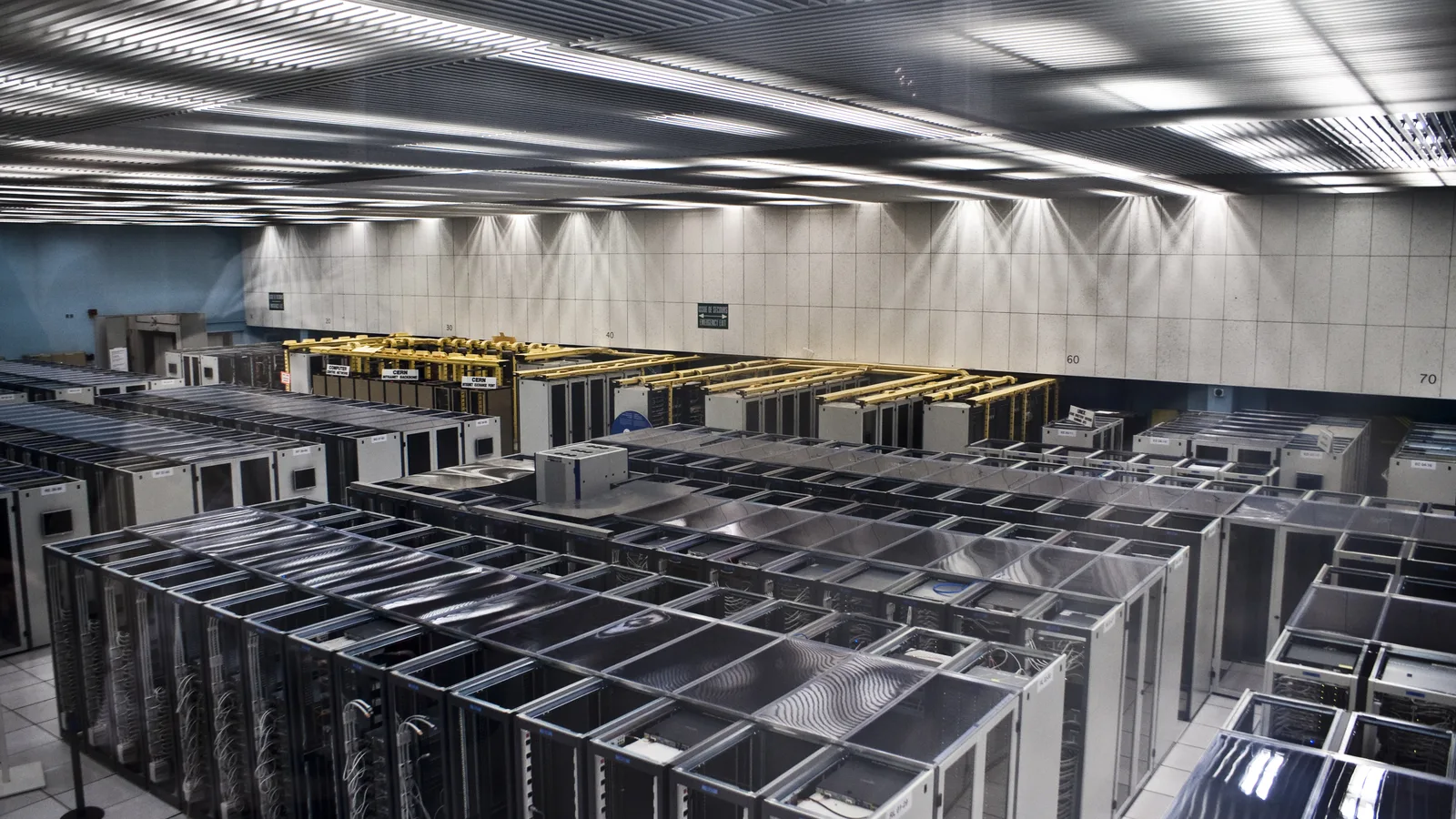
The ChatGPT Dots cloud computer is the part of the design that changes the most about how an agent behaves. Give an assistant a machine of its own and it stops being something you wait for. It also raises a fair question about what that machine can reach, which OpenAI answers in more detail than most coverage has noticed.
Updated October 2026. Dots launched on 29 September 2026 and are rolling out gradually, so check OpenAI own pages for the current position before relying on any detail here.

Every dot gets its own machine
OpenAI states that each dot works on its own cloud computer, with its own browser, and that your computer and its contents stay separate unless you choose to connect them. The practical consequence is the one the Help Center leads with: the dot keeps working on tasks when your device is offline or closed.
You are not locked out of it. The profile of the dot in the desktop app lets you open its computer to view and interact with it, which is the difference between an agent you supervise and one you simply trust.
What the browser is for
The browser matters because so much work has no API behind it. A dot that can open a site and operate it can do things a tool-calling agent cannot, which is also why browsing agents attract a particular class of attack. We cover that separately in our guide to browser agents and safety, and the underlying technique in what prompt injection is.
For sign-ins, OpenAI says dots can use saved passwords on supported websites without exposing them to the model. That is a meaningful distinction: the credential is handled by the password manager rather than passing through the context the model sees.
Connecting your own computer is optional
Local access starts turned off. To switch it on you use the ChatGPT desktop app on the machine in question and confirm Allow access, and you can confirm Revoke access to stop it. Once connected, the dot can reach files and work on that computer from any of its messaging channels, which is a wider grant than it first appears.
With local access on, a dot can also create Work or Codex tasks, use local skills, and fall back to your local browser when its cloud browser is blocked. That last point is worth reading twice if you were relying on blocking the cloud browser as a control.
Three separate switches, not one
In workspaces the cloud computer is not a single setting. OpenAI documents three controls under cloud computer capabilities, plus a fourth for the password manager:
- Cloud browser use. Whether dots and Work Cloud tasks can open and interact with websites.
- Cloud network access. Whether code and shell commands run on cloud computers can reach the internet.
- Cloud computer use. Whether they can interact with the desktop and applications on cloud computers.
- Use password manager. Controlled separately from cloud browser use.
Splitting them this way lets an organisation allow a dot to run code without letting it browse, or the reverse. Our guide to dots admin controls covers how these sit alongside the other workspace settings.

Where the cloud computer is limited
One restriction is easy to miss. Local computer access is unavailable in workspaces with Codex or ChatGPT Work policies that target a specific operating system. Dots can still work on their cloud computers in that case, provided the relevant cloud capabilities are switched on.
What the ChatGPT Dots cloud computer does not change
A cloud computer removes a constraint; it does not remove the need to check the work. The OpenAI wording is that dots can still make mistakes and that you should always review consequential work. The same caution applies to whatever the dot reports back: our guide on how to check an AI answer applies here as much as it does to a chat window.
There is a measured reason to keep checking. In one evaluation OpenAI ran, models were given tasks that normally need search while the search tool was unavailable, to see how often they failed to say so. GPT-6 Astra failed to acknowledge it between 2.5 and 3.3 percent of the time depending on the time budget. That is a low rate, and far below the 77.8 percent recorded for GPT-5.6 Sol at maximum reasoning budget, but it is not zero, and a dot working unattended for hours has more opportunities to hit it.
How the machine is monitored
The cloud computer is not unobserved. OpenAI says security safeguards built into dots help defend against malicious instructions and monitor for potentially harmful behaviour, and that if its monitoring system detects a safety concern it can pause or stop the work of the dot.
The system card adds useful specifics. Misalignment monitoring was extended to cover the persistent, proactive setup rather than being bolted on, and the production monitoring system assigns priorities to what it detects, where a P0 results in paging the security team. OpenAI also reports that in adversarial testing the model had some success at avoiding a P0 assignment, and that it expects the precision of priority assignment to improve. Treat monitoring as a safety net with known holes rather than a seal.
One more figure is worth recording for anyone weighing the risk of giving an agent a machine. Checking that the system-level safeguards behaved consistently, OpenAI found block rates for exploit development and red-teaming of 92 percent in both the dots and Codex harnesses, and for high-risk cyber activity 87.5 percent in the dots harness against 85 percent in the baseline. Dots are powered by a model OpenAI treats as Critical capability in cybersecurity under its Preparedness Framework, which is why those safeguards exist at all.
Common questions
Does the ChatGPT Dots cloud computer run when my laptop is off? Yes. That is its stated purpose: the dot keeps working on tasks when your device is offline or closed.
Can I see what it is doing? Yes. You can open the computer of the dot from its profile in the desktop app to view and interact with it.
Does the dot get my passwords? OpenAI says dots can use saved passwords for supported sites without exposing them to the model.
Can I block the cloud browser? In a workspace, yes, cloud browser use is its own setting. Note that a dot with local computer access can use your local browser when its cloud browser is blocked.
Is local computer access on by default? No. It starts turned off, and in Enterprise workspaces it is off by default at the workspace level as well.
Sources and further reading
Where the figures and rules above come from, so you can check them:
- The announcement, including proactive research and the control model: OpenAI, Introducing dots
- Setup, connected apps, scheduling, memory, rules and reset: OpenAI Help Center, Getting started with your dot
- The workspace settings an administrator controls: OpenAI Help Center, Manage dots in ChatGPT workspaces
- Appendix B, the red-teaming and alignment results for dots: OpenAI, GPT-6 Astra system card
Photo credits: CERN Server 03 by Florian Hirzinger – www.fh-ap.com, CC BY-SA 3.0, via Wikimedia Commons. Computing.co.uk (3943739559) by Mark Hillary from Serra Negra, São Paulo, Brazil, CC BY 2.0, via Wikimedia Commons. Half-closed laptop (Unsplash) by Luca Bravo lucabravo, CC0, via Wikimedia Commons.
Join the discussion