

Table of Contents
Table of contents
An image looks perfect on your screen and prints as a blurry mess. Print resolution is the reason, and the surprising part is that it is not a property of the file at all.
DPI is not a property of the file
This is the misunderstanding behind almost every resolution problem.
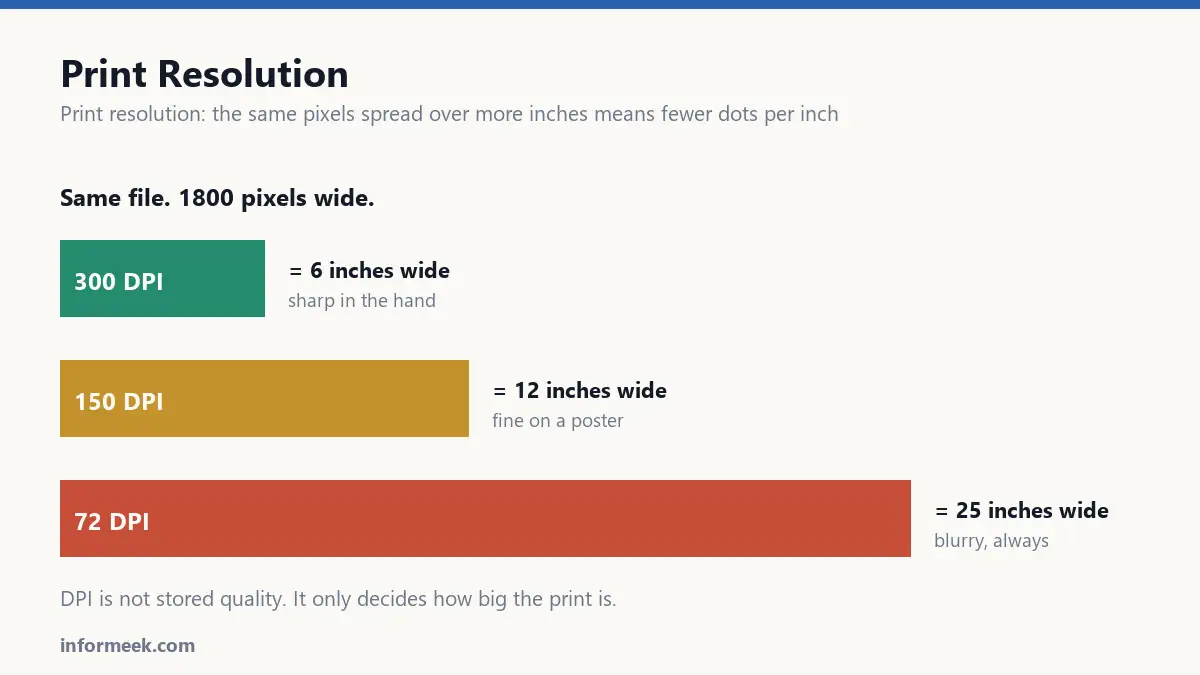
An image file contains a fixed number of pixels. A photo might be 3000 x 2000. That number never changes unless you resample it.
DPI is simply how many of those pixels you decide to place per inch when printing. It is a instruction about size, not a measure of quality.
The same 3000 pixel image printed at 300 DPI is 10 inches wide. Printed at 72 DPI it is 41 inches wide and looks terrible. Identical file, different instruction.
So “set it to 300 DPI” does not add detail. It only makes the print smaller.
Print resolution and the sum that matters
pixels needed = printed size in inches x DPIA 6 x 4 inch photo at 300 DPI needs 1800 x 1200 pixels. If your file is 800 x 600, no setting will fix it. You need a bigger original.
Run that sum before you place an image, not after the proof arrives.
What resolution for what
- 300 DPI for anything held in the hand. Flyers, brochures, business cards, magazines, packaging.
- 150 DPI for posters seen from a metre or two.
- 100 DPI or less for large banners and billboards.
- 72 to 96 DPI is meaningless for screens, where only the pixel count matters.
The pattern is viewing distance. A billboard viewed from fifty metres can be very low resolution because your eye cannot resolve the detail anyway. Printing one at 300 DPI would produce a file of absurd size for no visible gain.
Why enlarging does not work
Scaling up asks the software to invent pixels that were never captured. It looks at neighbouring pixels and guesses what should sit between them.
Guessed detail is soft detail. Doubling the size roughly doubles the softness, and past about 150% of original the result is visibly mushy.
Modern AI upscaling is genuinely better, because it has learned what edges and textures usually look like. It is still inventing, and on faces and text it invents confidently wrong details. Useful in a pinch, not a substitute for a proper original.
The exception that solves it entirely
None of this applies to vector artwork.
A vector is a set of shapes calculated at whatever size is needed, so it has no resolution to run out of. The same logo file is sharp on a business card and on a lorry.
This is why logos and diagrams should always be vector, and why photographs cannot be.
Practical traps
- Images pulled from a website are sized for screens and almost always too small to print at any useful size.
- Screenshots are captured at screen resolution and cannot be printed large. Recreate the graphic instead.
- Scaling inside the layout counts. A 300 DPI image enlarged to 200% in your document is now effectively 150 DPI.
- Phone photos are usually fine. A modern phone shoots enough pixels for a good A4 print, provided the shot is sharp.
- Heavy JPEG compression ruins prints even at correct resolution, because the blocky artefacts become visible on paper.
Checking before you commit
Most layout software flags low-resolution placed images in a preflight check. Run it. It is faster than any manual review and it catches exactly this.
Failing that, view your document at 100% on screen. That is roughly what the print will look like. Judging a print at 25% zoom is how blurry images get approved.
A worked example
Here is print resolution worked through on a real file. You have a photograph measuring 2400 x 1600 pixels and want it across the top of an A4 page, roughly 8 inches wide.
Run the sum. 8 inches at 300 DPI needs 2400 pixels. You have exactly 2400, so it works at that size and no larger.
Now suppose the layout grows and the image is stretched to 11 inches. Effective resolution drops to about 218 DPI, which will look acceptable but slightly soft. At 16 inches it falls to 150 DPI and becomes visibly poor in the hand.
The file never changed. Only the number of inches it was asked to cover.
Mistakes that produce blurry prints
- Taking images from a website. They are sized for screens and almost never large enough to print at any useful size.
- Setting a low-resolution file to 300 DPI and expecting improvement. That only makes the print smaller.
- Enlarging in the layout. A 300 DPI image at 200% is now 150 DPI, and the preflight check will say so.
- Judging at 25% zoom. View at 100%, which is roughly what the print will look like.
- Heavy JPEG compression. Blocky artefacts survive into print even at correct resolution.
Common questions
Are phone photos good enough to print? Usually yes. A modern phone captures enough pixels for a good A4 print, provided the shot is genuinely sharp and not heavily cropped.
Does AI upscaling actually work? Better than older methods, because it has learned what edges and textures typically look like. It is still inventing detail, and on faces and text it invents confidently wrong details. Useful in a pinch, never a substitute for a proper original.
Why do billboards use such low resolution? Viewing distance. At fifty metres your eye cannot resolve fine detail, so printing one at 300 DPI would produce an absurd file for no visible benefit.
Does print resolution apply to logos? No, provided the logo is vector. A vector has no resolution to run out of, which is exactly why logos should never be supplied as flat images.
Related reading
Continue with Brand Identity Elements, Vector File Formats, CMYK vs RGB. For the underlying standard, see ISO 12647 for print process control.

Join the discussion